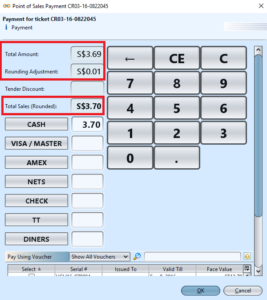


Rounding Rules view allows user to create settings for rules of rounding off sales total amount for payment at the POS Entry (cash register). The following are the procedures to set up and use the POS Entry rounding feature:
 Create POS Rounding Rules
Create POS Rounding Payment Means
Setup POS Settings for Rounding Rules
Rounding Off in POS Entry Payment
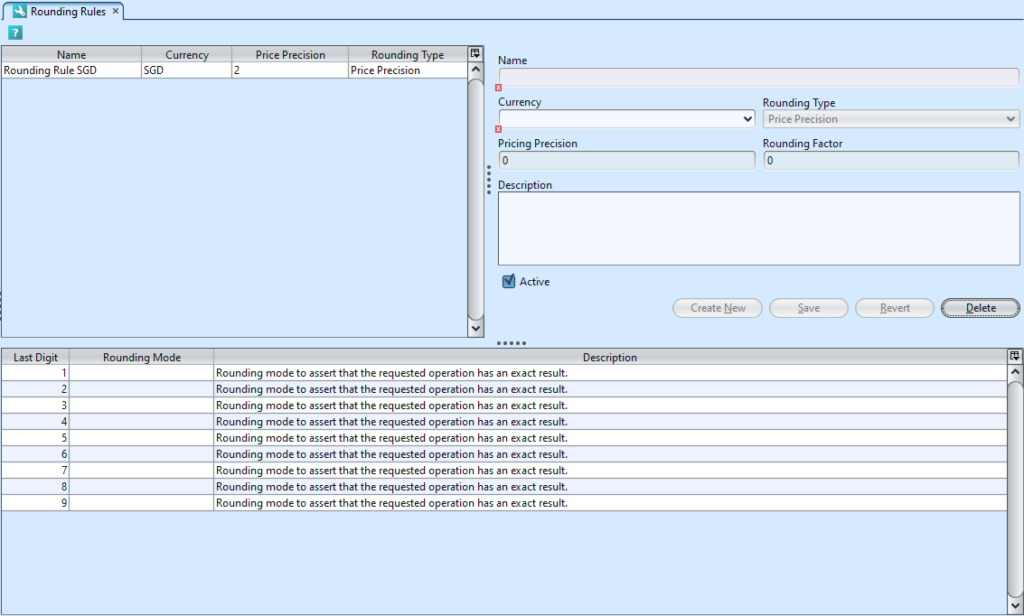
Field Name |
Description |
Mandatory Information |
| Name | Name of the rounding rules | Y |
| Currency | Self-explanatory | Y |
| Rounding Type | Self-explanatory | Y |
| Pricing Precision | Self-explanatory | Y |
| Description | Additional information for the rounding rules | N |
| Rounding Factor | Self-explanatory | Y |
| Active | Tick to activate the rounding rules | N |
| Last Digit | Last digit in total sales amount | Y |
| Rounding Mode | Rounding mode for the last digit | Y |
| Description | Description of the selected rounding mode for the last digit | Y |
Create POS Rounding Rules:
1. In “POS – (POS Settings) Rounding Rules“, click “Create New” button on the middle right side of the screen
2. Fill in rule’s “Name”, for example “Rounding Rule SGD”
3. Select “Currency“ from drop-down list, e.g. SGD
4. Pricing precision and rounding factor are set based on the selected currency. Currency is set in “Accounts – (Masters) Currency”

5. Click “Save” button to save the rounding rules
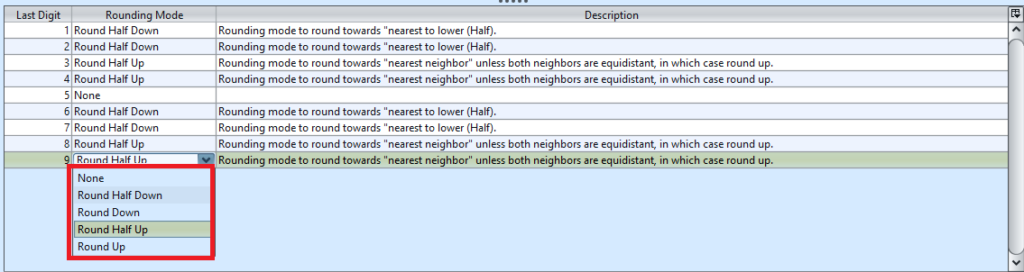
6. Define the “Rounding Mode“ for each “Last Digit“ in a total sales amount in the table at bottom half of the screen. Below are the available rounding modes and descriptions:
- None: no rounding, e.g. if last digit is 5 (SGD 0.05), then no rounding is applied
- Round Half Down: round down to 0 or 5, e.g. if last digit is 2 (SGD 0.02) then round down to 0 (SGD 0.00), if last digit is 6 (SGD 0.06) then round down to 5 (SGD 0.05)
- Round Down: round down to 0, e.g. if last digit is 2 (SGD 0.02) then round down to 0 (SGD 0.00)
- Round Half Up: round up to 5 or 10, e.g. if last digit is 3 (SGD 0.03) then round up to 5 (SGD 0.05), if last digit is 9 (SGD 0.09) then round up to 10 (SGD 0.10)
- Round Up: round up to 10, e.g. if last digit is 9 (SGD 0.09) then round up to 10 (SGD 0.10)
Create POS Rounding Payment Means:
1. In “POS – (Masters) Payment Means“, click “Create New” button at the bottom of the screen
2. Fill in payment means information at bottom half of screen
3. Select “Point Of Sales Rounding“ from drop-down list of “Payment Type ”
4. Select “YES“ from drop-down list of “Allow In POS ” for this sales rounding to show up in Point Of Sale (POS)
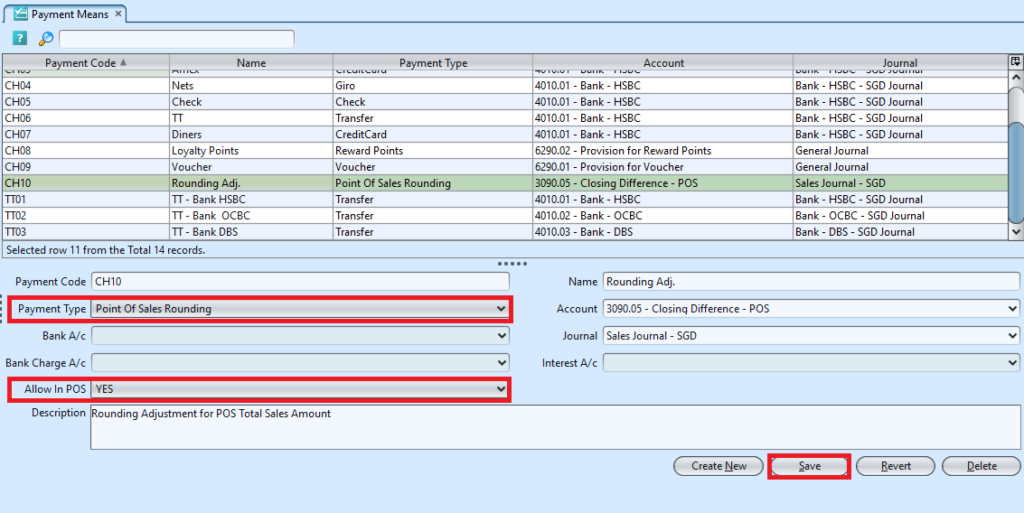
5. Click “Save” button to save
Setup POS Settings for Rounding Rules (Admin only)
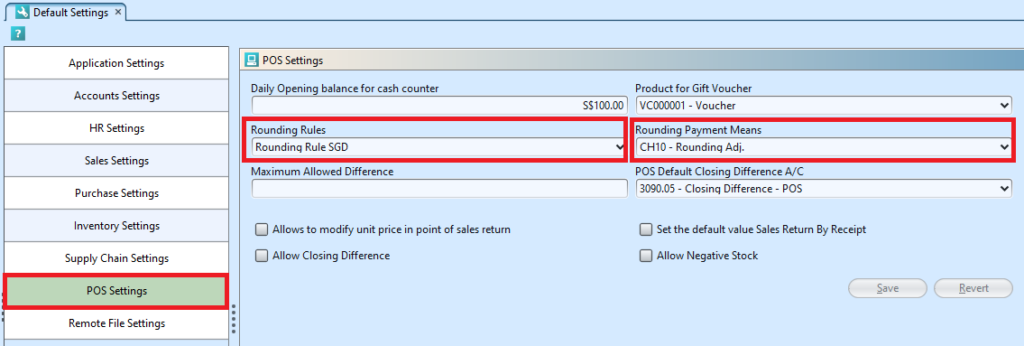
1. In “Organization – (Settings) Default Settings“, click “POS Settings” from the list of modules
2. Select the rounding off rule to use from the “Rounding Rules” drop-down list
3. Select “Rounding Adj.” as the rounding off payment means for POS Entry (cash register) from the “Rounding Payment Means” drop-down list
4. Click “Save” button
Rounding Off in POS Entry Payment
1. In “GOOMI POS – (Transactions) POS Entry“, click “Open POS” button (if not yet opened)
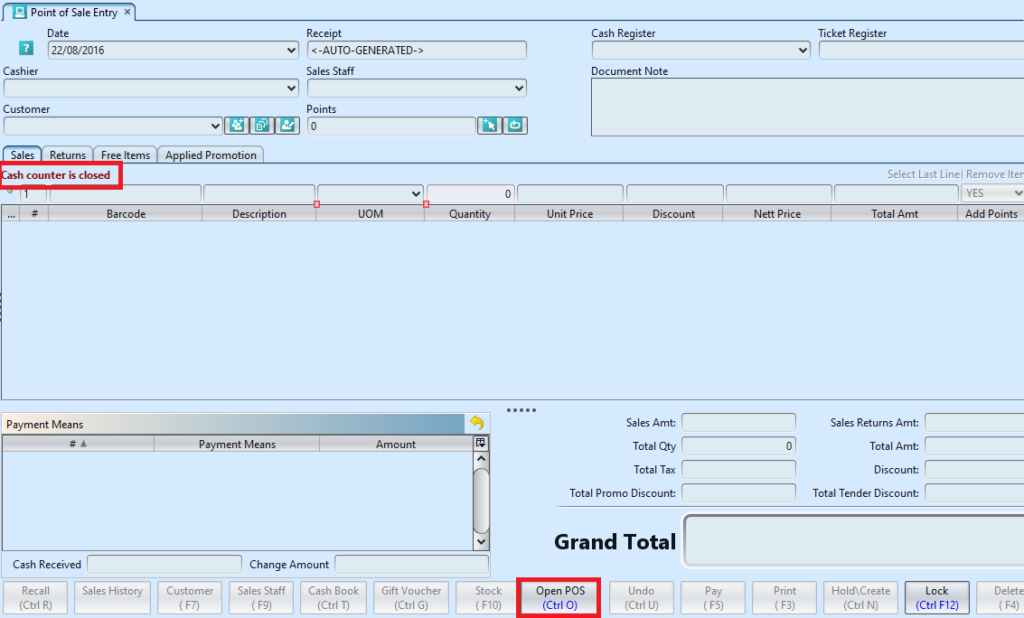
2. Scan product’s barcode for sales transaction and click  button to add the product
3. Click “Pay” button to process payment by customer
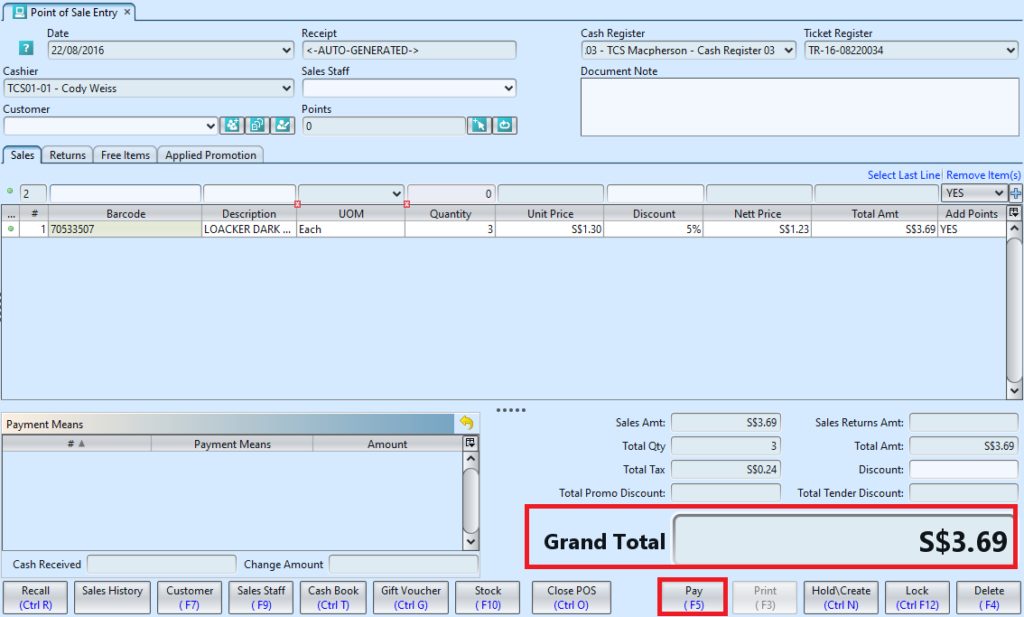
4. During payment, the sales total amount will be adjusted according to the rounding rule selected